Recently, John was having trouble with his WordPress website. What is his problem? His website was in Spanish (for the audience), but he wanted to edit and write content in English.
John was frustrated with how to make his WordPress editor work in English while his website remained in Spanish. Does that sound like a problem you’ve faced too?
Well, don’t worry; just as we helped John, we’re here to help you too. Here are the two simple solutions we shared with John to solve his language issue.
If you’d like a step-by-step guide to set editor’s language in your dashboard, be sure to check out this YouTube tutorial!
Solution 1: Change or Set Editor’s Language
We told John, “WordPress has a built-in feature that allows you to set editor’s language separately from the site’s language. Here’s what you need to do:”
Step 1: Go to Your Profile
First, go to your WordPress dashboard.
- In the top right corner, click on your username and select Edit Profile.
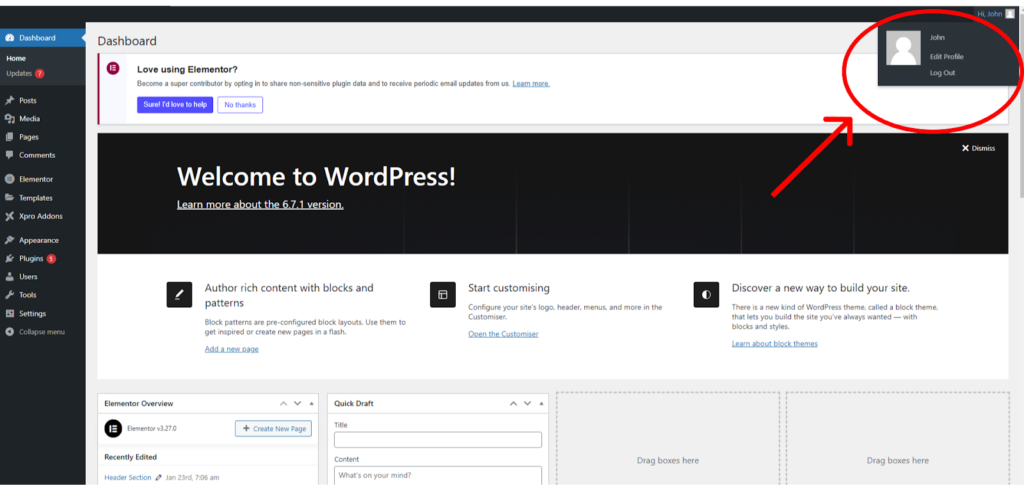
Step 2: Choose Your Preferred Language
Scroll down to the Language section.
- From the dropdown, select English (or your desired language) as editor language.
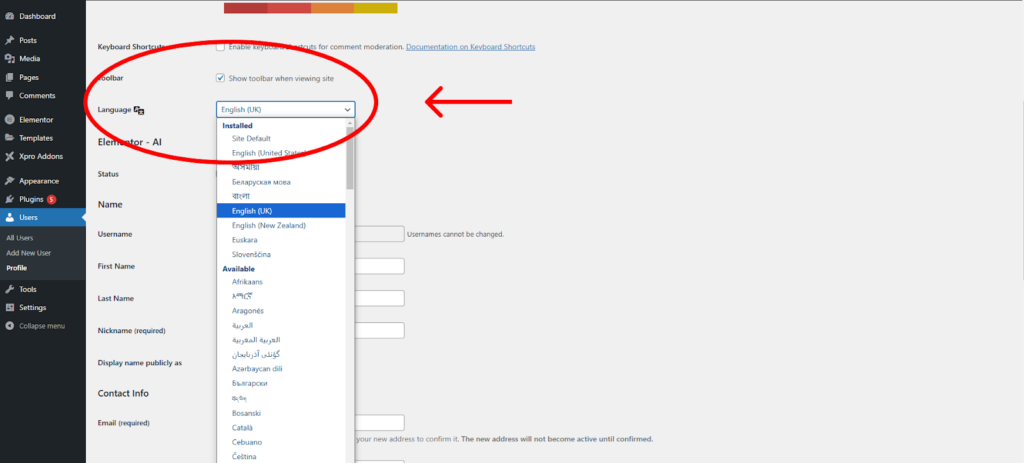
Step 3: Save the Changes
Now, click on the Update Profile button to save settings.
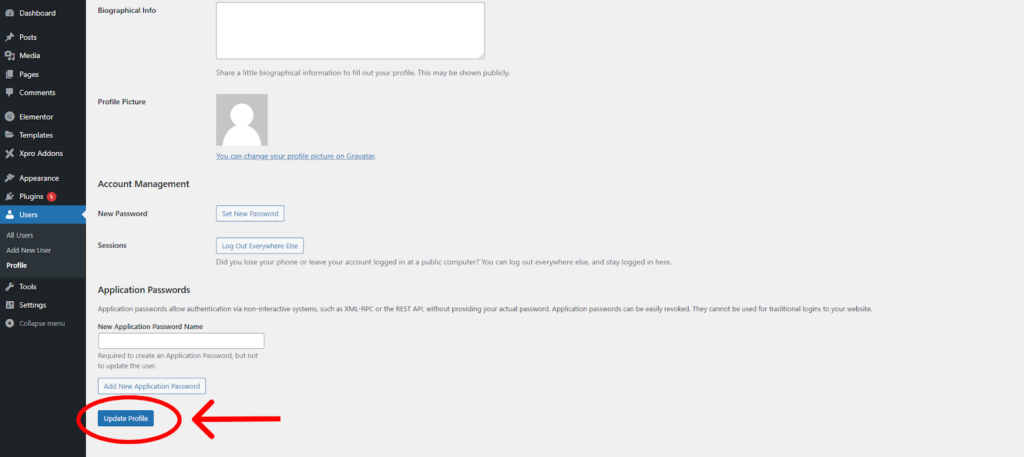
How to change site language in WordPress
Set the Site’s Language
- Go to the WordPress dashboard, click on Settings, and select General.
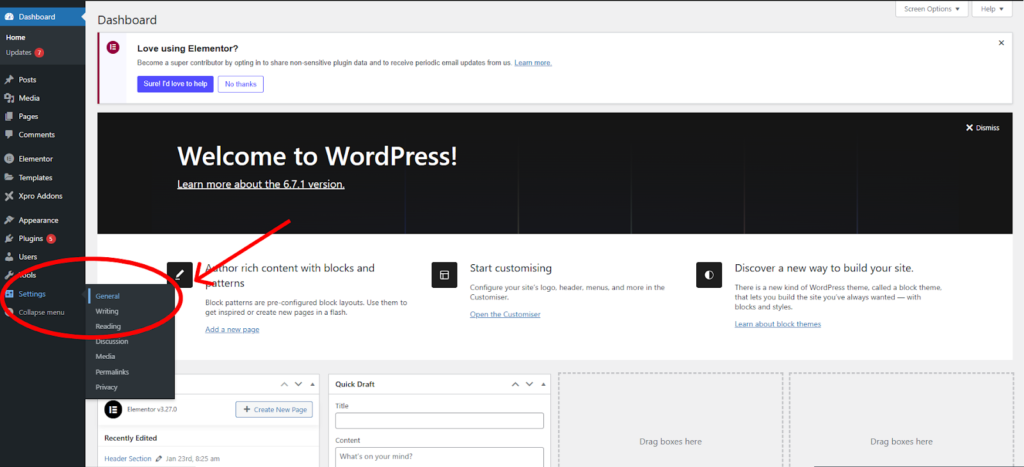
- Here, you’ll find the Site Language option. Make sure it’s set to Spanish and click Save Changes.
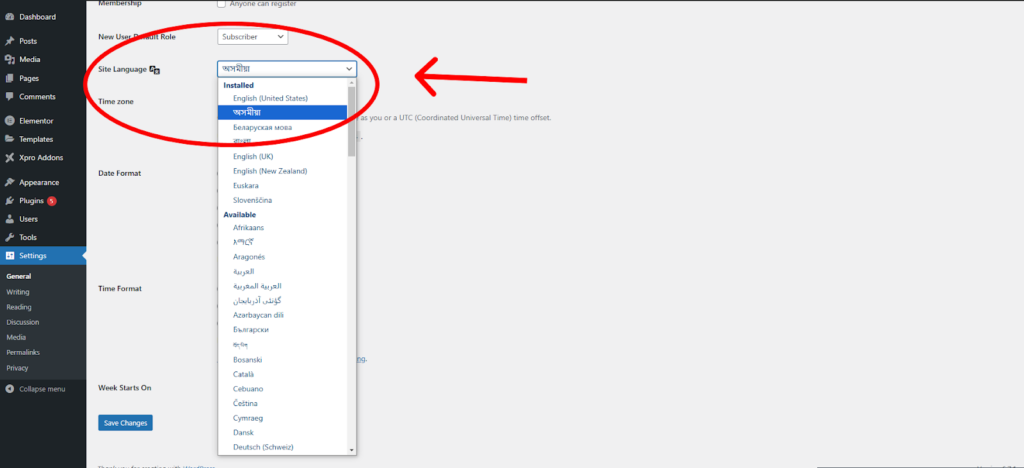
And just like that, the editor was now in English, but the website remained in Spanish!
Solution 2: Use Your Browser’s Translation Feature
What if you don’t want to change your WordPress settings? No problem! We gave you another solution that uses the browser’s built-in translation feature.
This is how you can do it:
Step 1: Change your Site’s Language
- Go to your WordPress dashboard
- Navigate to setting>General>navigate to site language and select your desired language
Step 2: Enable Translation in Your Browser
Now, if you’re using Google Chrome, do this:
- Go to your WordPress dashboard
- Double-tap on your touchpad or right-click anywhere on the page.
- From the menu that appears, select Translate to English.
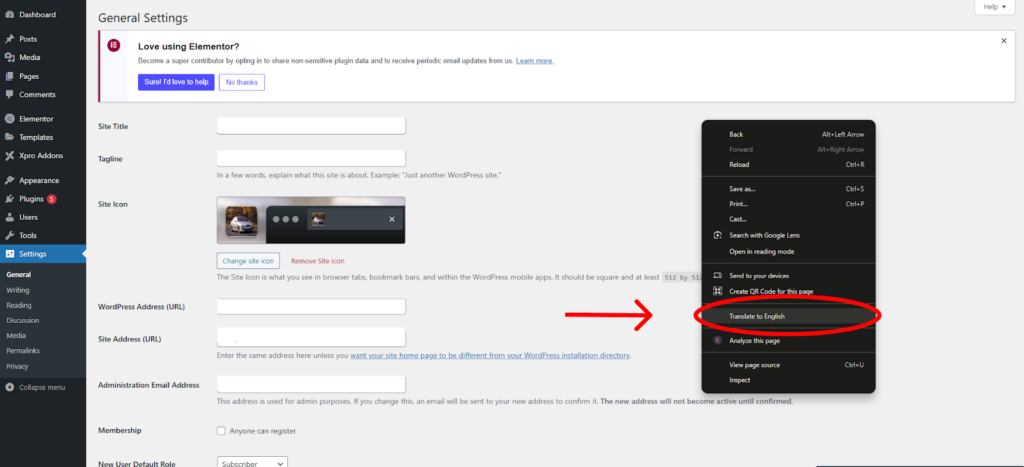
- Once you do this, a little Translate icon will appear in the search bar. Click on it and set your language preferences for the editor as well.
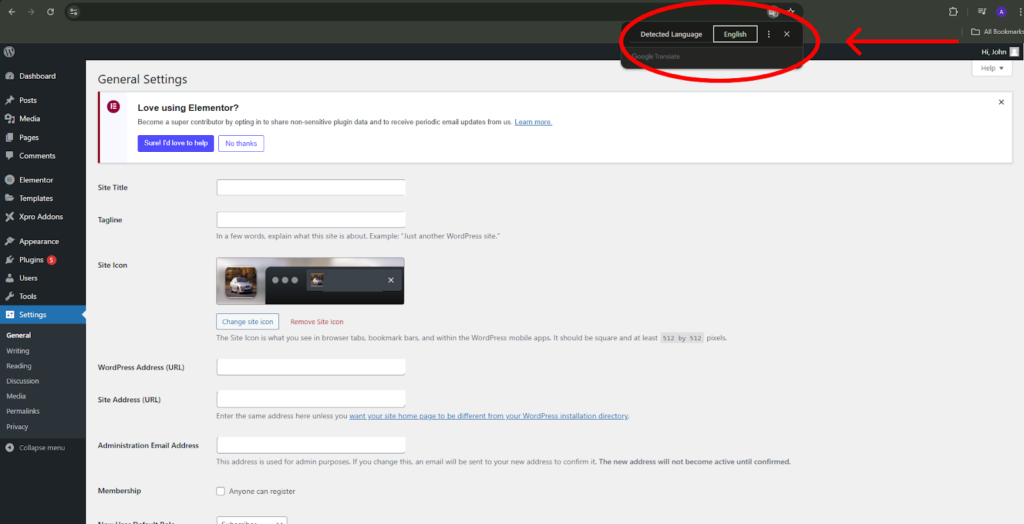
That’s it! just like that, your editor is in English while your site stays in Spanish
John’s Problem Solved, And So Is Yours!
With these two simple solutions, John was back to creating content in no time. If you have been in a similar situation, try these steps, they are quick, effective, and easy to follow.
Remember:
- If you want WordPress to handle it, use Solution 1.
- If you’d rather rely on your browser, go for Solution 2.
We shared this guide to help more people like John overcome WordPress challenges. Do you have another issue? Let us know in the comments below, and we’ll help you out!